

For the mode «Tracker»
First campaign
Your first campaign in Tracker mode takes six steps: a traffic source, an offer, a campaign, a postback in the affiliate network and a check with a test click.
This page takes you from an empty workspace to the first conversion in the log. The details of each step are on separate pages, linked below.
What you need first: a working server and a domain with its A record set, an affiliate account with an offer, and a traffic source (an ad network).
Step 1. Turn on Tracker mode
Open Settings → General, and in the Workspace mode block choose Tracker. Campaigns and a Tracker section appear in the menu: Offers, Traffic Sources, Conversions, Reports. If the block is missing, the tracker is not connected to your account. Details are in Tracker.

Step 2. Add a traffic source
Open Traffic Sources → Add Source. On the first screen ("Choose an ad network") pick your network, for example Facebook or TikTok. If it is not listed, take Custom source. On the second screen check the Name and click Add Source: a ready-made option fills in the click ID and price parameters by itself. More in Traffic sources.
Step 3. Add an offer
Open Offers → Add Offer.
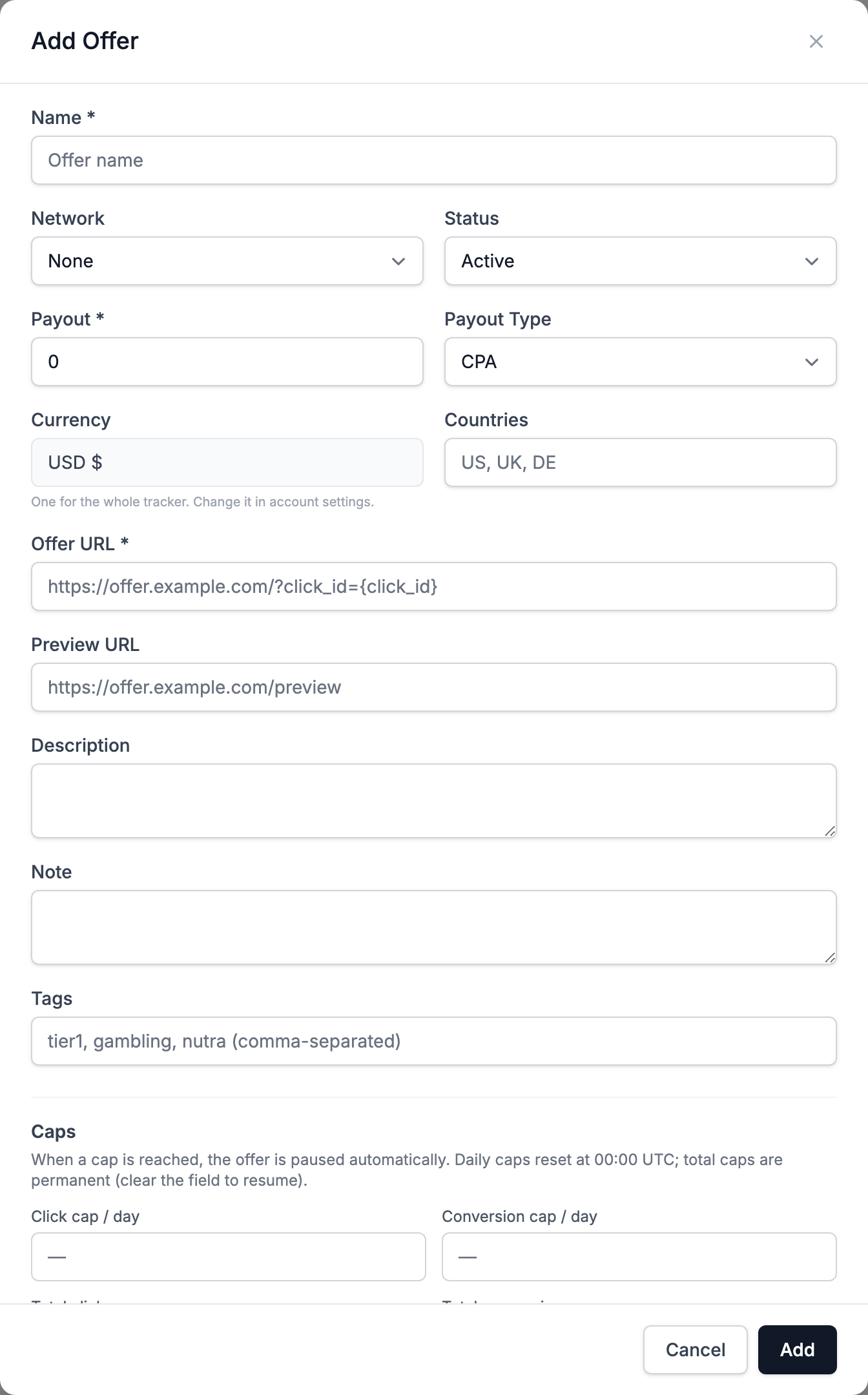
- Enter the Name.
- In Affiliate network choose your network. If it is not in the list, leave No network.
- In Offer URL paste the link from the affiliate network and add
{click_id}to the parameter the network returns in its postback. After you choose a network, the form tells you which parameter fits it. Details are in Offers. - Enter the Payout and Payout Type if you know them.
Step 4. Create a campaign
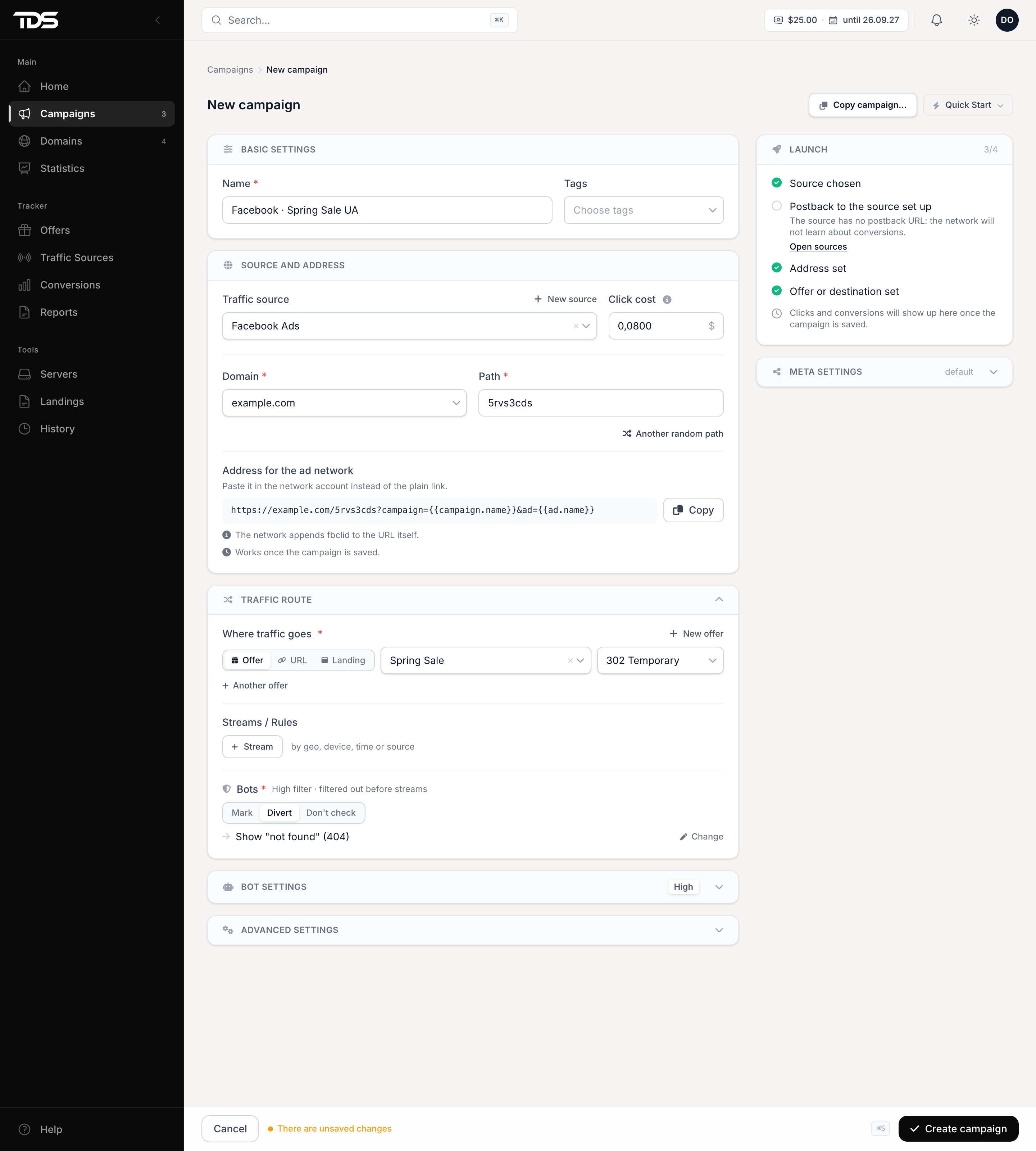
Open Campaigns → New campaign and fill in the form:
- Name.
- The Traffic source you created in step 2. In Click cost enter what a click costs, if the network does not pass the price itself.
- Domain and Path.
- In Traffic route choose Offer and the offer from step 3.
- Bots: leave Mark for now.
Click Create campaign. All fields are described in Campaigns. After saving, the campaign page opens with the ad network URL. Copy it and paste it into the traffic source account as the ad address.
Step 5. Set up the postback in the affiliate network
The affiliate network reports conversions by calling a TDS.SO postback address. Open Conversions → Receiving conversions, choose your Affiliate network and follow the builder steps: it tells you what to add to the offer link and shows the ready address for the network account.
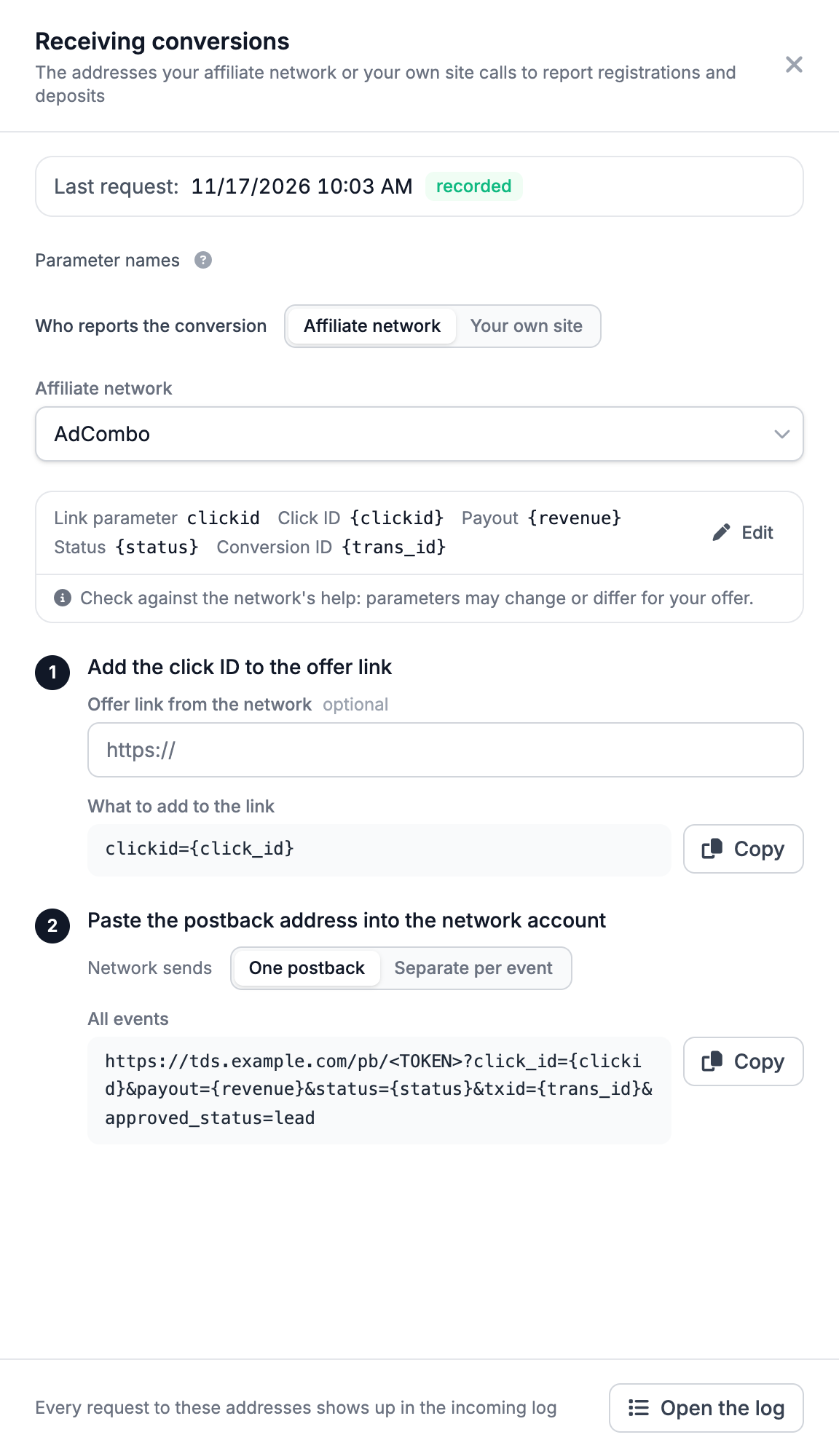
The same address is in the offer form once a network is chosen: the Postback for the ... account block with the network name. For parameters and statuses see Conversions and postbacks.
Step 6. Check the chain
- Open the campaign address in a browser. You land on the offer, and the offer address has the click ID in place of
{click_id}. - Open Statistics → Clicks: your click should appear in the log. If it does not, check the domain and the bot filter.
- Open the campaign: in the Launch card the steps Address set, Offer or destination set and Clicks are coming in should be checked (what the steps mean).
- When the affiliate network sends a conversion, it shows up in Conversions. If it does not, open Receiving conversions: it shows the last request and the result of each one (recorded, click not found and others).
The money for a campaign is in the Campaigns list and in Reports (Reports). Revenue counts only approved conversions (how).
Next
- Split traffic by country and device: Streams.
- Send conversions back to the ad network: postback to the source.
- Limit an offer by conversions per day: daily cap.
Step 4. Links and the first click
A link is an address on your domain such as example.com/promo; after creating it, open it and find your visit in the click log.
Moving from Keitaro
Moving from Keitaro by hand: in Tracker mode a Keitaro campaign becomes a TDS.SO campaign, an offer becomes an offer, a source becomes a source, a postback becomes a postback; in Links mode a campaign becomes a link.