

For the mode «Tracker»
Offers
Add an offer in Tracker → Offers: a name, the affiliate address with the click number, a payout and, if you want, a daily cap with a fallback offer.
An offer is what you promote: the address in the affiliate program where the visitor goes, and the payout for a conversion. Offers live in Tracker → Offers.
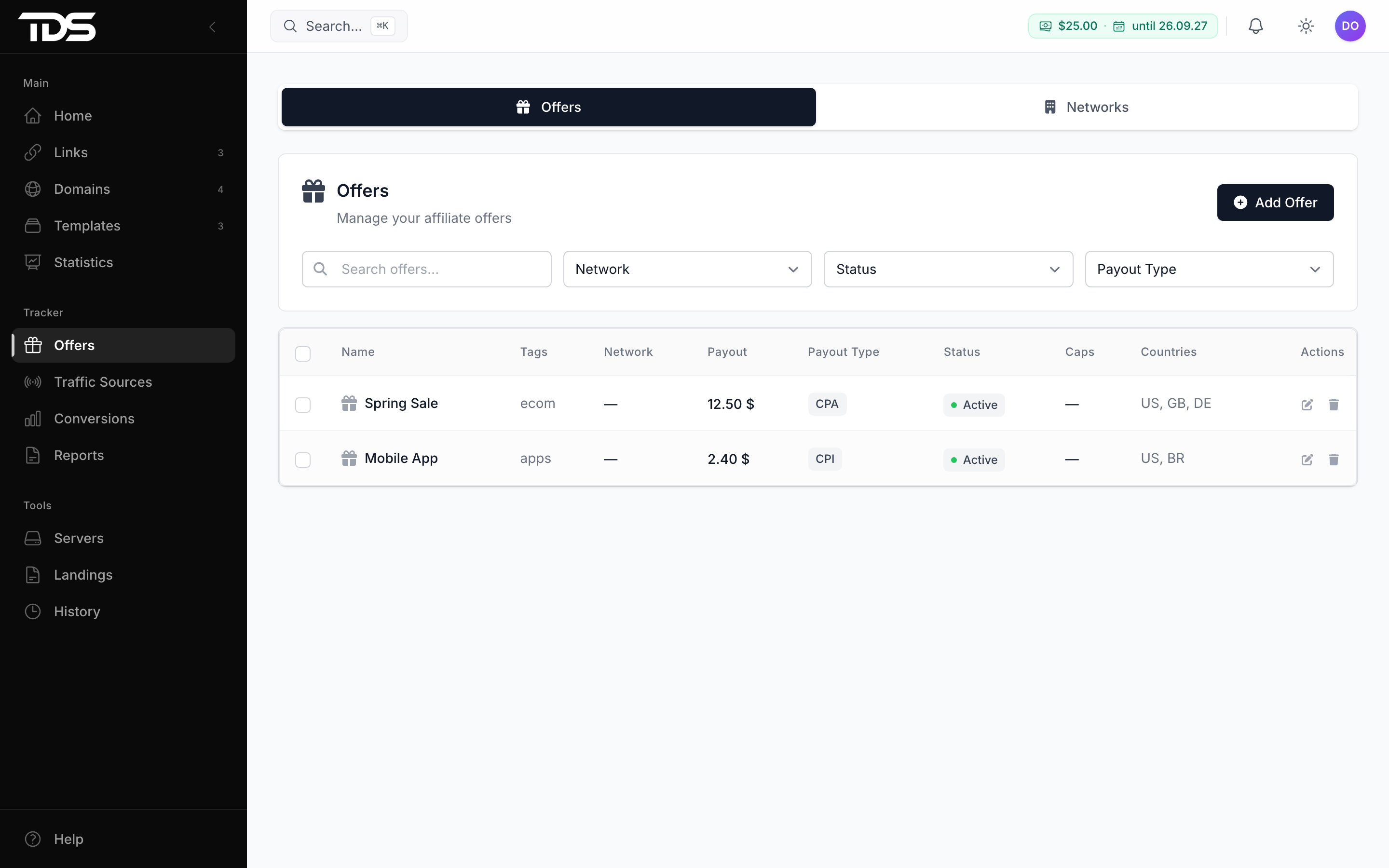
How to add an offer
Click Add Offer, fill in the form and click Add. Only Name and Offer URL are required.
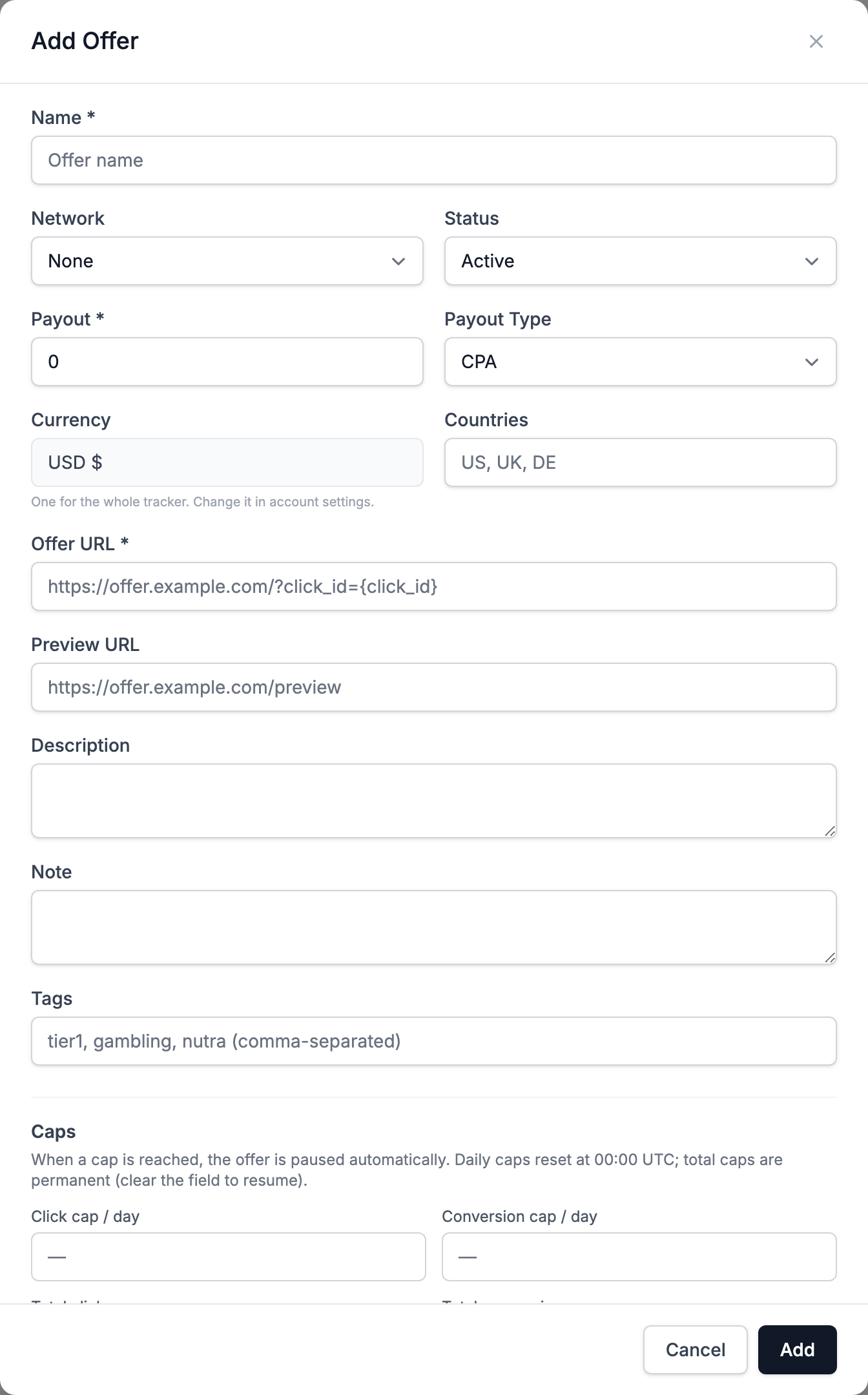
| Field | What to enter |
|---|---|
| Name | Any name. It shows in lists and reports. |
| Affiliate network | The network you work with. You can leave No network. If you pick a network, the form shows which parameter takes the click number and the postback address for its cabinet. |
| Offer URL | The address from the affiliate program. It must start with http:// or https://. See offer address. |
| Payout and Payout Type | The amount and the type: CPA, CPL, CPS, CPI or RevShare. RevShare is a percentage, the others are in dollars. |
| Countries | Countries where the offer works. All countries by default. |
| Tags | Labels for search and filtering. |
| Preview URL | A page for your own viewing. It does not affect traffic. |
| Note | Up to 2000 characters. |
The tracker has one currency for the whole account: US dollars. An offer has no currency of its own.
Offer address and click number
The affiliate program must learn which click brought a conversion. Put the {click_id} macro in the offer address. TDS.SO fills in the click number at redirect time. Example:
https://offer.example.com/?click_id={click_id}The parameter name depends on the program: subid, aff_sub, clickid and so on. Take it from the network help. If you pick an Affiliate network from the list, the form shows the right parameter. If the address lacks it, a warning and a button to append the ready pair appear.
Without {click_id} the form still saves, but it shows a warning: the affiliate program cannot report which click made a conversion, so conversions will not attach to clicks. How the program sends the click number back is in Conversions and postbacks.
When you change the address of an existing offer, the form shows the checkbox Replace the old URL in links too.
- On: links and landings that had the old address get the new one. An address you edited by hand in a link stays as it is. After saving, a notification tells how many addresses were updated.
- Off: links keep the old address, and rotation clicks stop counting for this offer.
Daily cap
A cap limits the number of conversions on an offer per day. When the limit is reached, clicks go to a fallback offer until midnight.
In the offer form open the Daily cap section and set:
- Conversions per day: from 1 to 1,000,000. Empty means no cap. Next to it you see how many were counted today.
- What counts: All conversions, Registrations or First deposits.
- Fallback offer: required when a limit is set. Any other offer with an address works, system offers included.
What happens next:
- Each matching conversion on the offer counts toward the cap. Rejected ones do not count. A conversion confirmed the next day is not counted a second time.
- Days follow the time zone from your profile settings. When the limit is reached, the offer is marked as capped until midnight in your time zone.
- New clicks of this offer go to the fallback offer. The list shows "Cap reached" with the fallback name and the time.
- At midnight the counter resets and clicks return to the offer.
Repeat deposits do not go to the cap. With All conversions, every event except repeat deposits counts.
Networks send conversions with a delay, so the cap can overshoot by a few. If you change the limit or What counts, today's counter is rebuilt from the conversions already recorded. If you remove the cap, the counters are cleared. If the fallback offer is deleted, the list shows a Cap without fallback state: clicks stay on the offer after the limit is reached.
Offers list
The list has search, a tag filter and a period picker (7 days by default). Columns: Offer, Payout, Clicks, Conv., CR, Revenue, EPC. Offers with the most revenue come first, and offers without activity are at the bottom. Under the name you see the address, countries, tags and cap state.
Each row has actions:
- open the preview (if Preview URL is set);
- edit;
- duplicate: the copy is named "name (copy)" and is saved only with the form button;
- delete. Links with this offer stay, but without it. A deleted offer cannot be restored.
You can select several offers and delete them at once. Offers marked "System" are visible, but cannot be edited or deleted. Offers have no statuses and no archive.
How offer figures get into reports: Reports. In a campaign, the offer is chosen in a stream: Campaigns.
Campaigns
A campaign in TDS.SO is an address on your domain for an ad network, with an offer, a source and a click price; you create it with one form in the Campaigns section.
Traffic sources
A traffic source describes an ad network: how it passes the click number and price, and where TDS.SO sends the conversion postback. The catalog has 109 networks and a Custom source option.