

For the mode «Tracker»
Campaigns
A campaign in TDS.SO is an address on your domain for an ad network, with an offer, a source and a click price; you create it with one form in the Campaigns section.
A campaign is an address on your domain that you paste into an ad network. It holds the offer, the traffic source, the click cost, the streams and the bot filter. The Campaigns section is in the menu of Tracker mode (how to turn it on).
Campaign list
Open Campaigns. The table shows each campaign's name, address, offer and source, and on the right the figures for the period: Clicks, Conversions, Revenue, Cost, Profit, ROI. How they are counted is in How money is counted. The period is picked above the table.
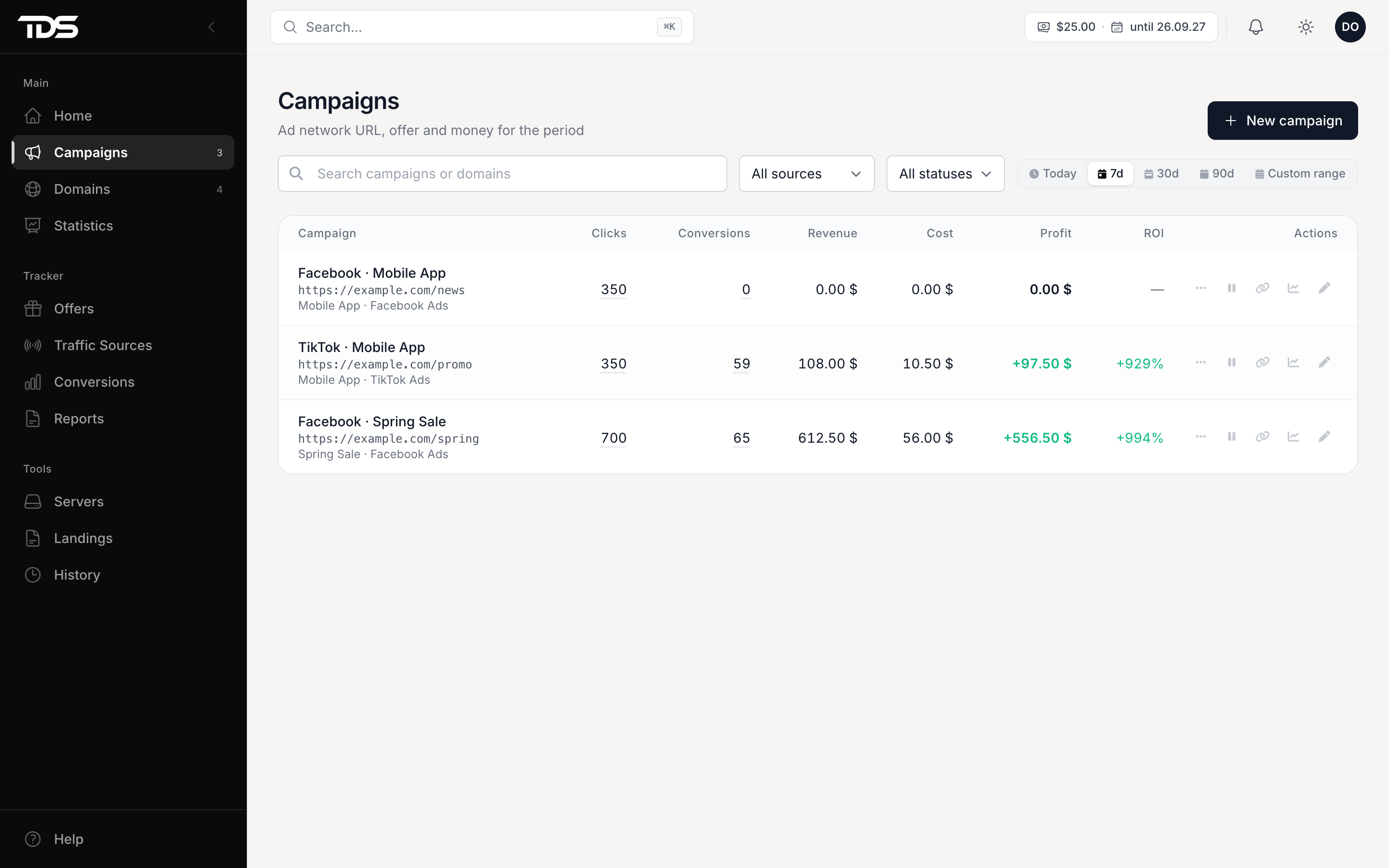
You can search by name or domain. The filters are Traffic source and Status (Running or Stopped). The Stopped label marks switched-off campaigns, and Subscription ended marks those whose link was switched off by the plan.
A row has buttons to stop or start, copy the ad network URL, open the Report and edit. The "⋯" menu holds Click log, Conversions, Duplicate and Delete. You can stop and start a campaign that has a single link.
Create a campaign
Click New campaign. The form is the template form with two differences: after Basic Settings comes a Source and address block, and a Launch card stands on the right.
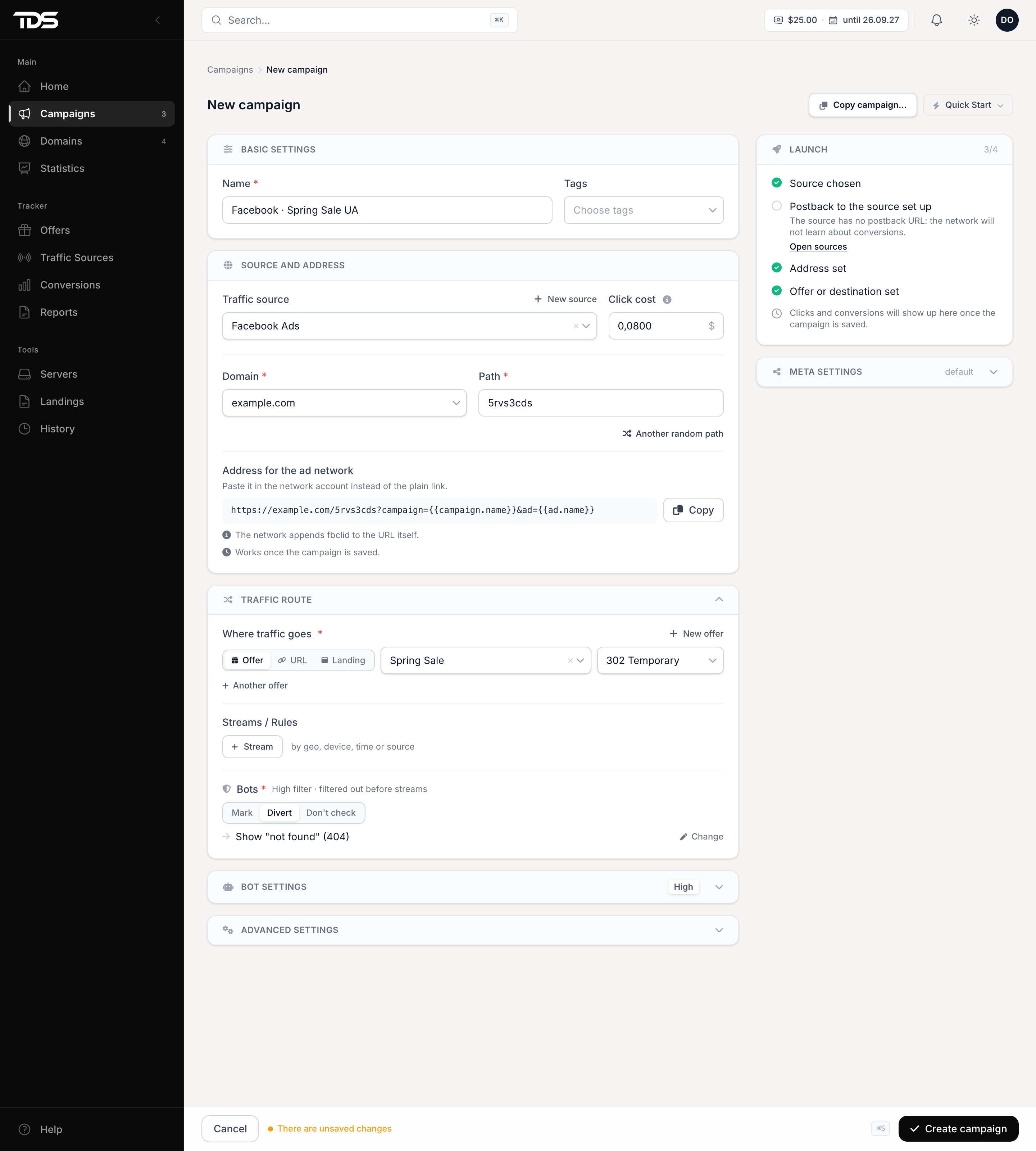
- In Basic Settings enter the Name, for example "FB Mostbet KZ". Tags are optional.
- In Source and address choose the Traffic source. If the one you need is missing, click New source and create it right here (what a source is). The source decides which macros the ad network URL gets.
- In Click cost enter a fallback price. It is used when the network did not pass its own price in the click, and it goes into the cost (details).
- Choose a Domain and set the Path. Another random path fills in a new one. The path cannot contain spaces or the characters
/ ? # % \and is up to 60 characters long. If the path is taken on the domain, the form says so. No domain yet: click Add domain (see Domain). - In Traffic route say where people go. For an offer choose the destination kind Offer and the offer itself from the list. Need a new one: create it with the button in the same block (about offers). You can also enter a URL or a Landing. Without an offer address (except for a landing) the campaign cannot be saved.
- If part of the traffic needs an exception, add a Stream (conditions and examples are in Streams). The redirect method is chosen in the same block: Redirect types.
- In the Bots row choose Mark, Divert or Don't check. See Bot filtering for details.
- Click Create campaign.
After saving, the campaign page opens, and the ad network URL is under the Source and address block. It is built from the campaign address and the source macros. Copy it into the ad network account. Until the campaign is saved, the text under the address says "Works once the campaign is saved". Unsaved edits do not change the address: save first, then copy.
You can start a campaign from a copy of another: choose Duplicate in the list row. The form opens with the same streams, offer, source and price, and picks a new path. The name gets a "Copy of" prefix.
Launch card
On the campaign page the Launch card stands on the right. It is a checklist of what stands between you and the first money.
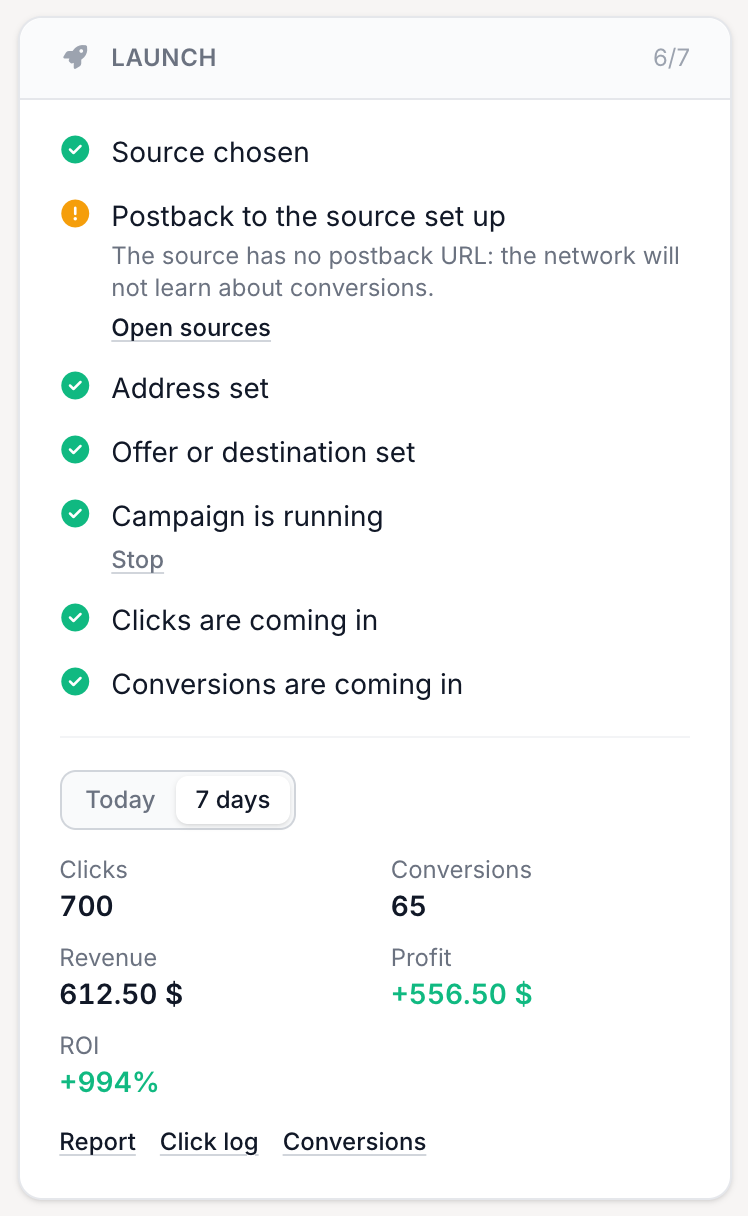
The steps:
- Source chosen.
- Postback to the source set up: the source needs a postback address back to the network (how).
- Address set.
- Offer or destination set.
- Clicks are coming in: at least one click in 7 days.
- Conversions are coming in: at least one conversion in 7 days (the affiliate postback).
- Campaign is running.
A step that is not done has a hint and a button, for example Choose a source or Show the ad network URL. Below, the card shows the campaign figures: Clicks, Conversions, Revenue, Profit, ROI. The period switches between Today and 7 days. The Report, Click log and Conversions links open the same figures filtered by this campaign.
Stop and start
You can stop a campaign in the list or in the Launch card. The app asks "Stop the campaign?"
A stopped campaign answers the visitor with a 403 error. The click is still recorded together with its cost. So turn the ads off in the network too, or the cost keeps growing. The Start button puts the campaign back to work.
If the plan has ended, the campaign link answers 404, and the card shows the Subscription has ended step with a renewal button. After renewal the link comes back by itself. You cannot start the campaign until the plan is renewed.
You can stop and start a campaign that has a single link. For an old template with several links, switch the links on and off one by one in the Links section, opened by its direct address /links.
Stream stats
If a campaign has streams, each stream row in Traffic route shows figures under its name for the same period as the one chosen in the Launch card, for example "7 days: 120 clicks · 3 conversions". Revenue is added when it is not zero.
This shows which stream brings conversions and which only eats traffic. While the period figures load, the rows stay silent, so they do not show the previous period's numbers. Clicks that did not fall into any stream, and a stream that is no longer in the campaign, are not counted in these figures.
Edit and delete
Open a campaign from the list (click the row or use the pencil button). Change any fields and click Save campaign. The domain and path can be changed too. For an old template with many links, saving touches only the settings, and the link addresses stay as they are.
To delete a campaign, choose Delete under the "⋯" menu. The app warns that the campaign address will stop opening. If the campaign has several links, they go with it. If the campaign was the default template, a second question follows: new links take the settings of this template.
Next
- Offers: the affiliate address, the click ID, the daily cap.
- Conversions and postbacks: how the affiliate network reports conversions.
- Reports: money by campaign, source, offer and country.
Tracker
Tracker mode builds the TDS.SO workspace around campaigns: a click, an offer, a conversion from the affiliate network and the money (revenue, cost, profit, ROI) are linked in one chain.
Offers
Add an offer in Tracker → Offers: a name, the affiliate address with the click number, a payout and, if you want, a daily cap with a fallback offer.