

Step 2. Domain
Point your domain to the server or activate a domain from a seller.
For traffic to go through TDS.SO, the domain must point to your server. The dashboard checks this when you add the domain, so set up the DNS records first, then add the domain to the dashboard.
Point the domain to the server
In the domain's DNS, create an A record with your server's IP.
In your registrar's panel, open DNS record management for the domain and add:
| Type | Name | Value |
|---|---|---|
| A | @ | your server's IP |
| A | www | your server's IP — if you need URLs with www. |
Delete other A, AAAA and CNAME records for @ and www. If you keep them, some visitors will not reach your server.
Registrar guides: REG.RU, RU-CENTER, GoDaddy. For others, search for "how to change an A record" and the registrar's name.
DNS changes take effect in a few minutes, sometimes up to a few hours. To check, run dig +short example.com (on Windows — nslookup example.com): it must return your server's IP.
Add the domain to the dashboard
Open Domains → Add Domains, paste the domain and click Add & Check. You can paste a list at once, one domain per line.
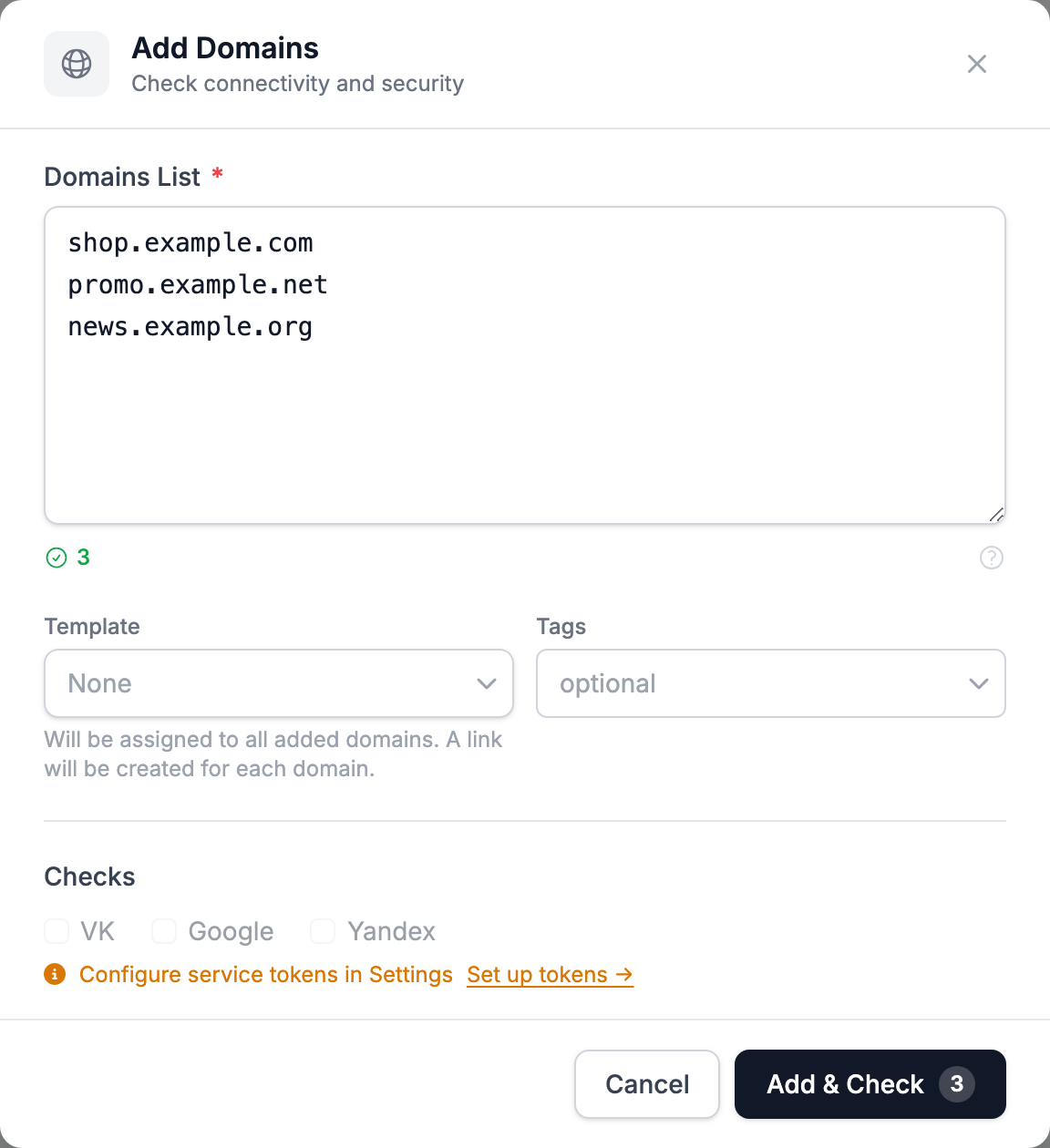
Leave the Template field empty for now — you will create a link in the last step. Block checks in VK, Google and Yandex are not needed to start.
The dashboard shows the result for each domain. If a domain is Unavailable, DNS has not updated yet or ports 80 and 443 are closed on the server — wait and check again. Other causes are covered in domain troubleshooting.
The server issues the HTTPS certificate itself on the first visit to the domain over https://.
Domains from a seller
You can buy ready-made domains from sellers — they already work through the seller's server, so you need no server or DNS of your own. The seller gives you an activation code: paste it after the domain, separated by a space, in the Add Domains window. Such domains usually do not last long, and you do not control their DNS — see Where to get domains.