

Step 3. Template
Set where to send people and what to show bots, and create links right away.
A template is a set of rules for links: where to send a person, how, how to filter out bots and what to show them. You can create any number of links from one template.
Create a template
Open Templates → Create Template.
If you do not want to go through the settings, pick a ready-made option in the Quick Start menu — it fills in the form for a typical task. Safe redirect is a good start. The Start from template... button copies the settings of one of your templates.
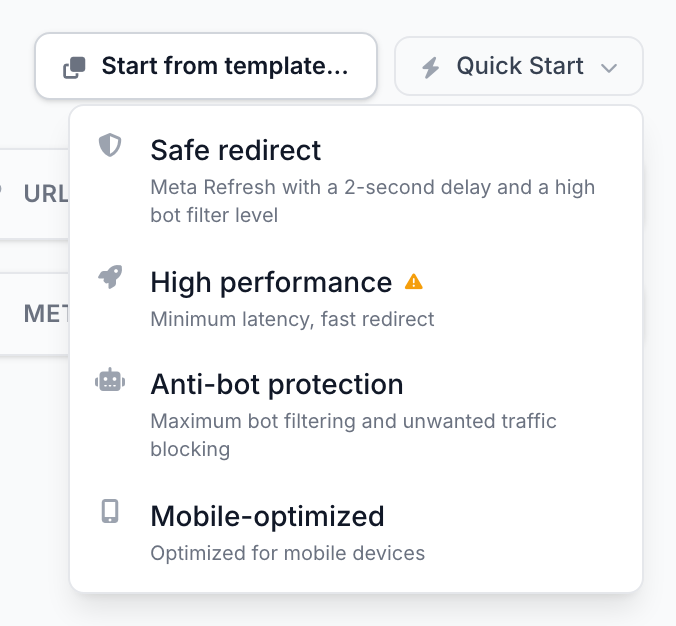
Then fill in the form: the name can be anything; the rest is below.
Where traffic goes
In the Traffic route block, enter the URL people will land on: an offer, your site or a tracker campaign.
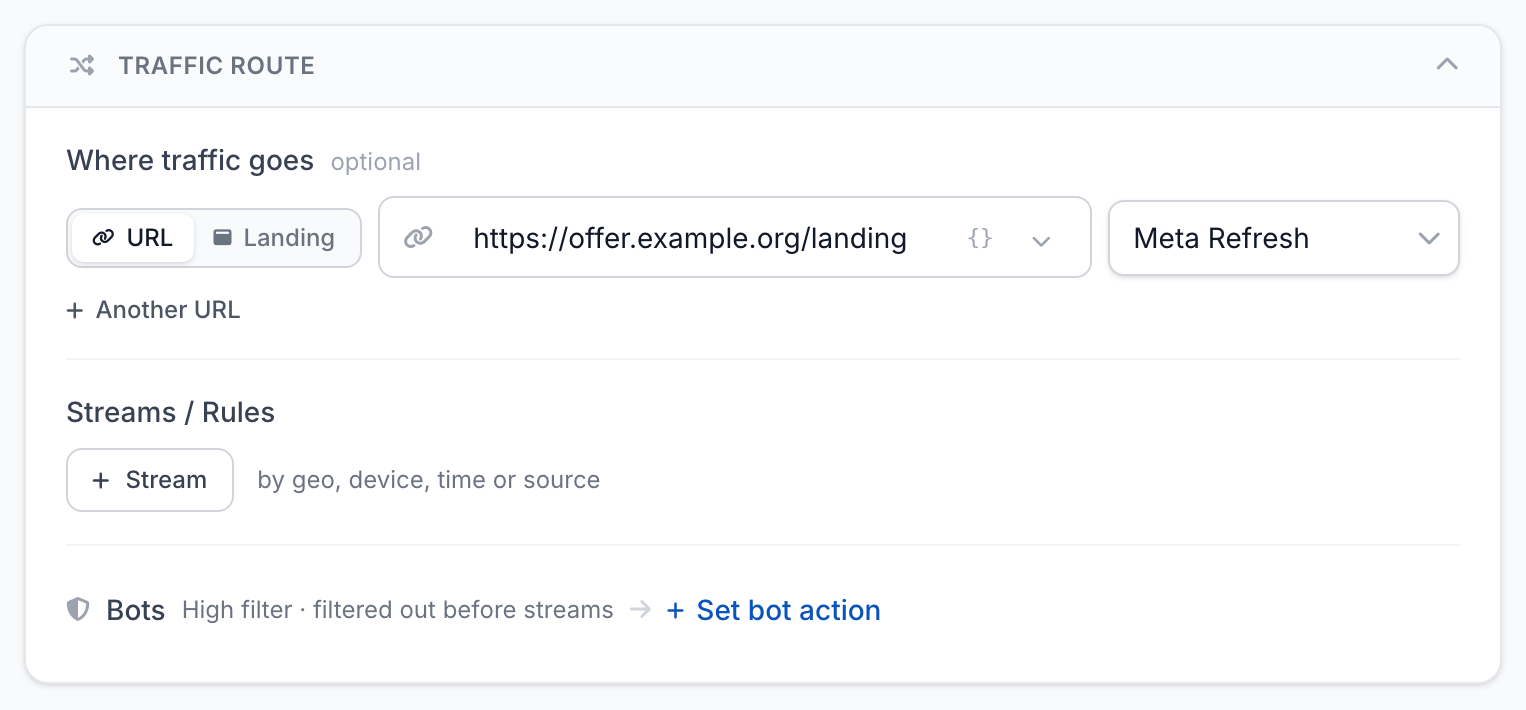
- URL or Landing — send the person to a URL or show your own page right on the link's domain. To start, select URL.
- Another URL — add several URLs and split traffic between them, for example to test two offers.
- The list on the right is the redirect type. Meta Refresh fits most cases. Choose 302 Temporary if the destination site needs to see where the visitor came from.
You can leave the URL empty and enter it when creating links.
Streams
A stream sends some visitors to a separate URL by a condition: country, device, OS, language, traffic source or a parameter in the URL. Anyone who matches no stream goes to the main URL. Streams are not required for the first launch.
Example: send visitors from the US to a separate offer and everyone else to the main URL.
- In the Traffic route block, click Stream and name the stream, for example "US".
- In What it catches, select Country → is → US. The Condition button adds more conditions, for example device.
- In Where to, enter the URL for this stream and click Done.
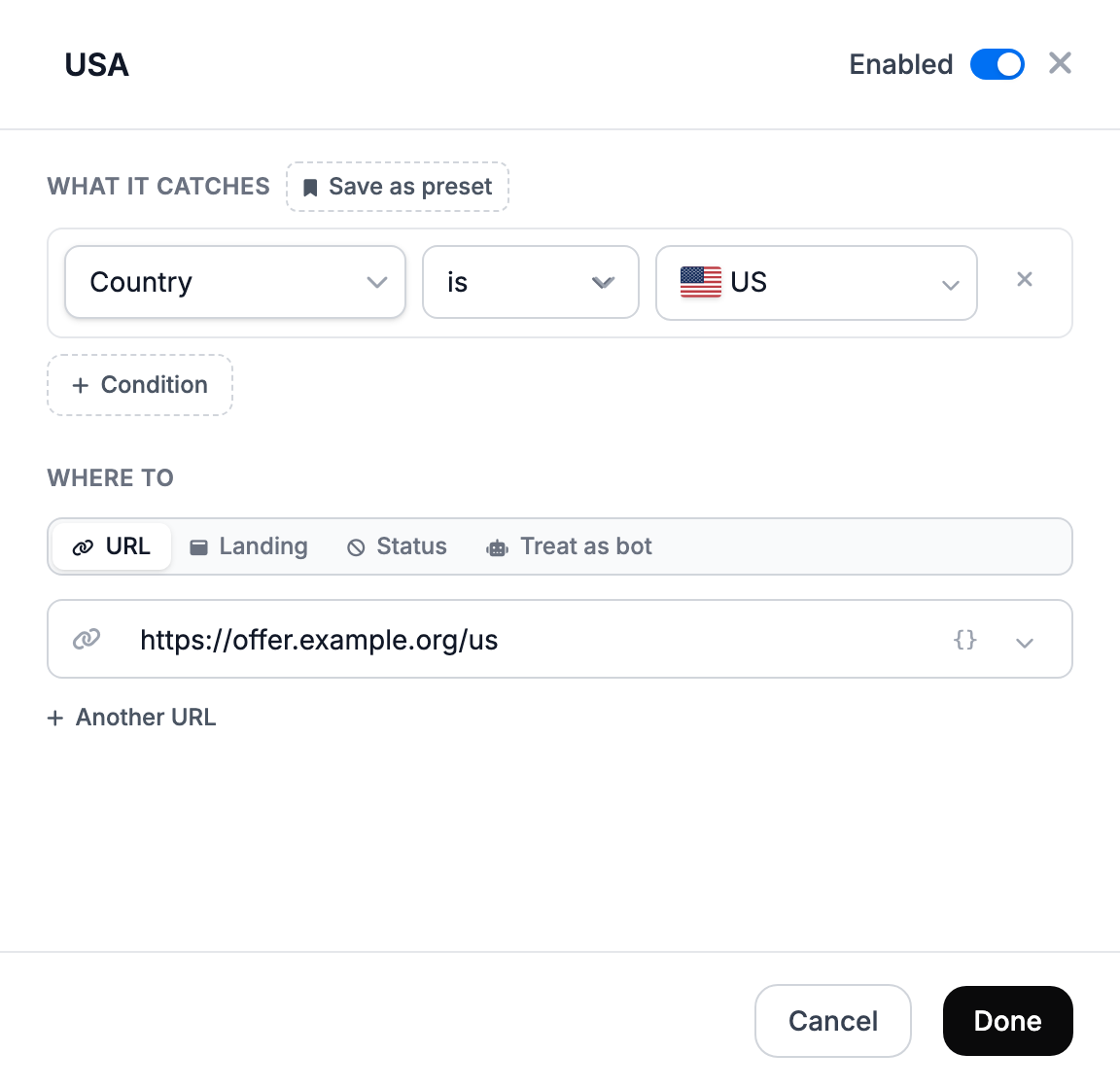
Multiple streams are checked from top to bottom; the first match wins. So put narrow conditions above broad ones: "US, mobile" above "US". For common tasks there are ready-made condition sets, for example Tier 1 GEOs or iOS. More in Streams and the guide Different URLs for countries and devices.
What to show bots
Bots are search crawlers, scanners, scrapers and other automated traffic. The Bots row shows the filter level — High by default.
Click Set bot action and enter the URL of the page for bots — for example, your site's home page. If you do not set a URL, bots go to a random popular site.
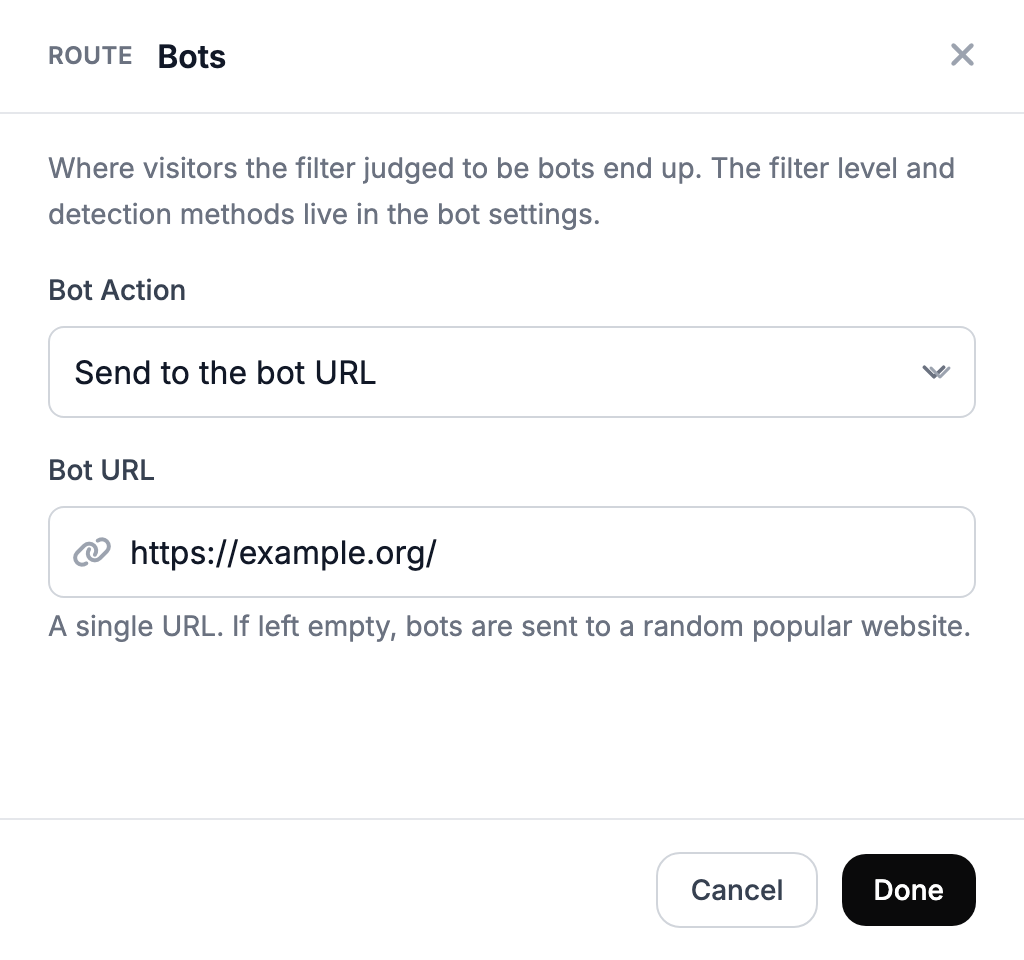
Instead of a URL, you can show bots a landing page or a blank page with a response code, for example 404. Filter levels and your own bot lists are covered in Bot filtering.
Advanced settings
You can leave them as they are for the first launch. The most useful:
- Parameter Forwarding — append parameters from the ad link (
utm_sourceand others) to the destination URL; - Auto-disable Links — after how many hours links pause automatically;
- URL Generation — length and characters of the random slug after
/; - Meta Settings — title, description and preview image in messengers.
All fields are in Template settings.
Click Create Template.
Create links right away
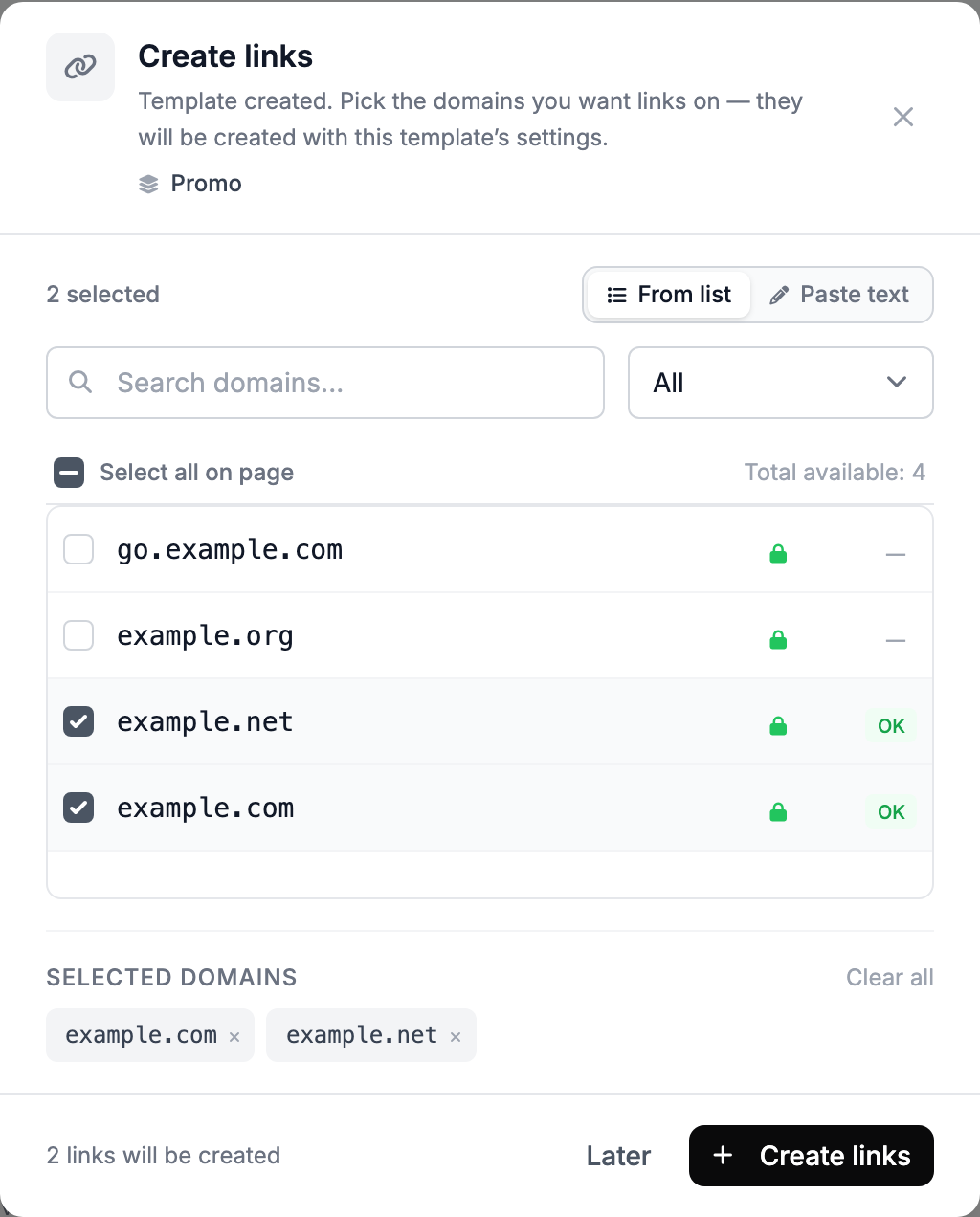
After you create the template, the dashboard offers to create links from it — this is the fastest way.
- Tick the domains that need links. Each selected domain gets one link. A long list is easier to paste with Paste text — one domain per line.
- If the template has no destination URL, enter it here.
- Click Create links.
The finished links appear in the same window — copy them one by one or with Copy all. Each link gets a random slug after /.
If you clicked Later, you can create links at any time: with the Create Link button on the template page or in the Links section. There you can also set your own slug, for example example.com/promo — see the next step.
If traffic goes to a tracker
Add the {click_id} macro to the URL, for example https://tracker.example.com/click?cid={click_id}, and turn on Parameter Forwarding → GET parameters. More in the guide TDS.SO in front of a tracker.
If you want to change the template
The redirect type and bot settings change for all links at once. The destination URL and streams are copied into a link when it is created — after you edit them, the dashboard offers to update existing links too. More in Template and links.