

Guides
TDS.SO in front of a tracker
How to put TDS.SO in front of Keitaro, Binom or another tracker so bots do not reach your campaigns.
TDS.SO filters out bots and sends people to the tracker campaign. Offers, landing pages and conversions stay in the tracker.
Set up the template
- In Traffic route, enter the tracker campaign URL and pass the click ID in it:
https://tracker.example.com/abc123?sub1={click_id}. - To pass the parameters from the ad link to the tracker, turn on Advanced Settings → Parameter Forwarding → GET parameters. Or pass only the ones you need with macros:
&sub2={utm_source}&geo={country_code}. All macros are in the reference. - In the Bots row, choose Send to the bot URL and enter your page. Bots will not reach the tracker.
- Save the template. If links already exist, copy the new URL to them with the Redirect / page URL checkbox.
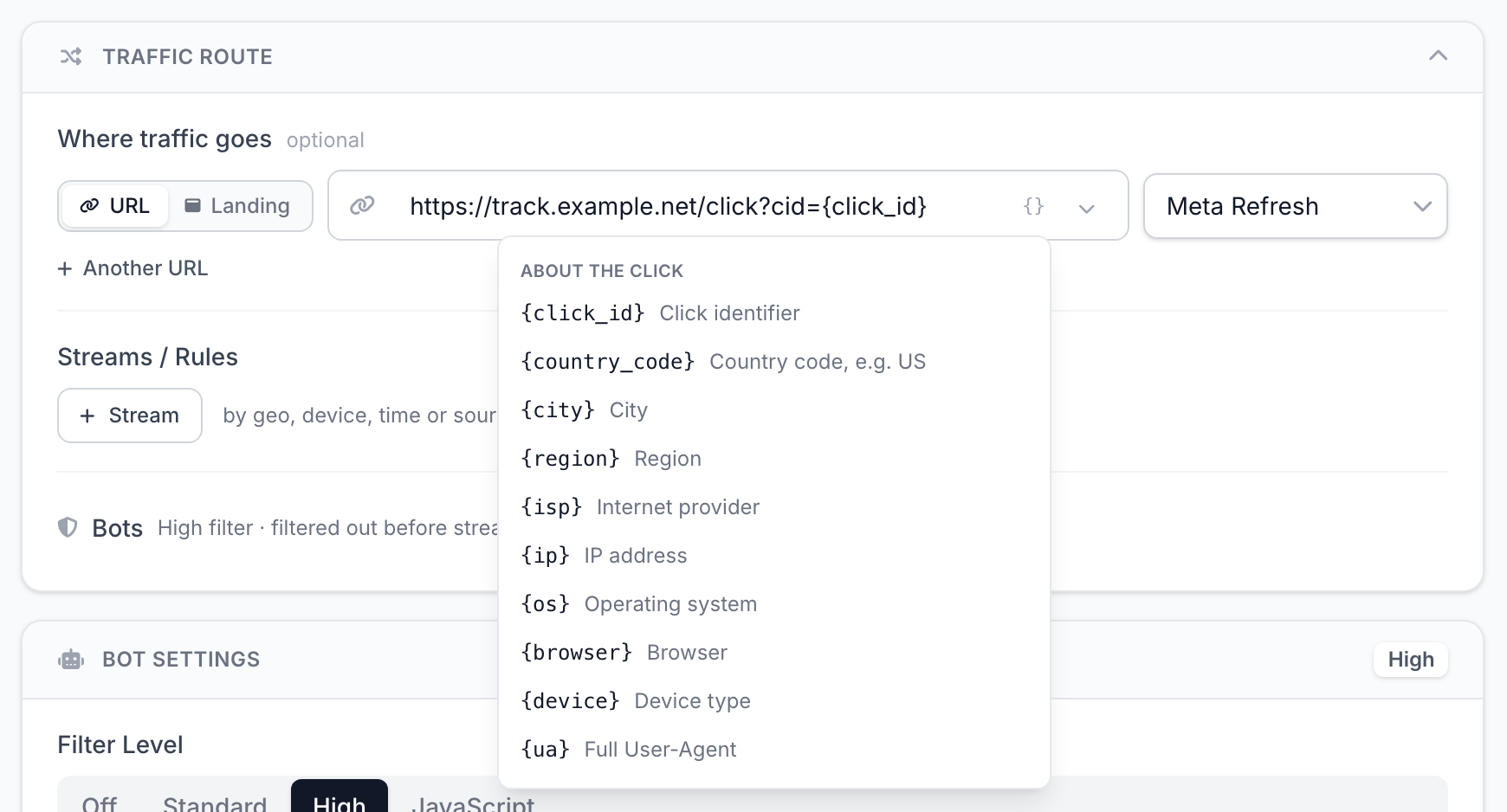
Redirect method
| Method | What to keep in mind |
|---|---|
| Meta Refresh | the tracker does not see which site the visitor came from |
| 302 Temporary | the tracker sees the referrer, but the JavaScript filter level works as High |
Do not use 301 Permanent: the browser remembers the tracker URL, and repeat visits bypass TDS.SO. All methods are in Redirect methods.
Check
After a minute, open the link with a parameter, for example ?utm_source=test. In the tracker, the visit should have a 32-character sub1 and sub2=test. You will see the same ID in your click details in Statistics → Clicks.
If it does not work
- The tracker received
{utm_source}instead of a value — the ad link has no such parameter, see Macro stays in the URL. - TDS.SO shows more clicks than the tracker — TDS.SO also counts bots, see Why the numbers differ.