
Click log
The click log: filters, click details, export and deletion.
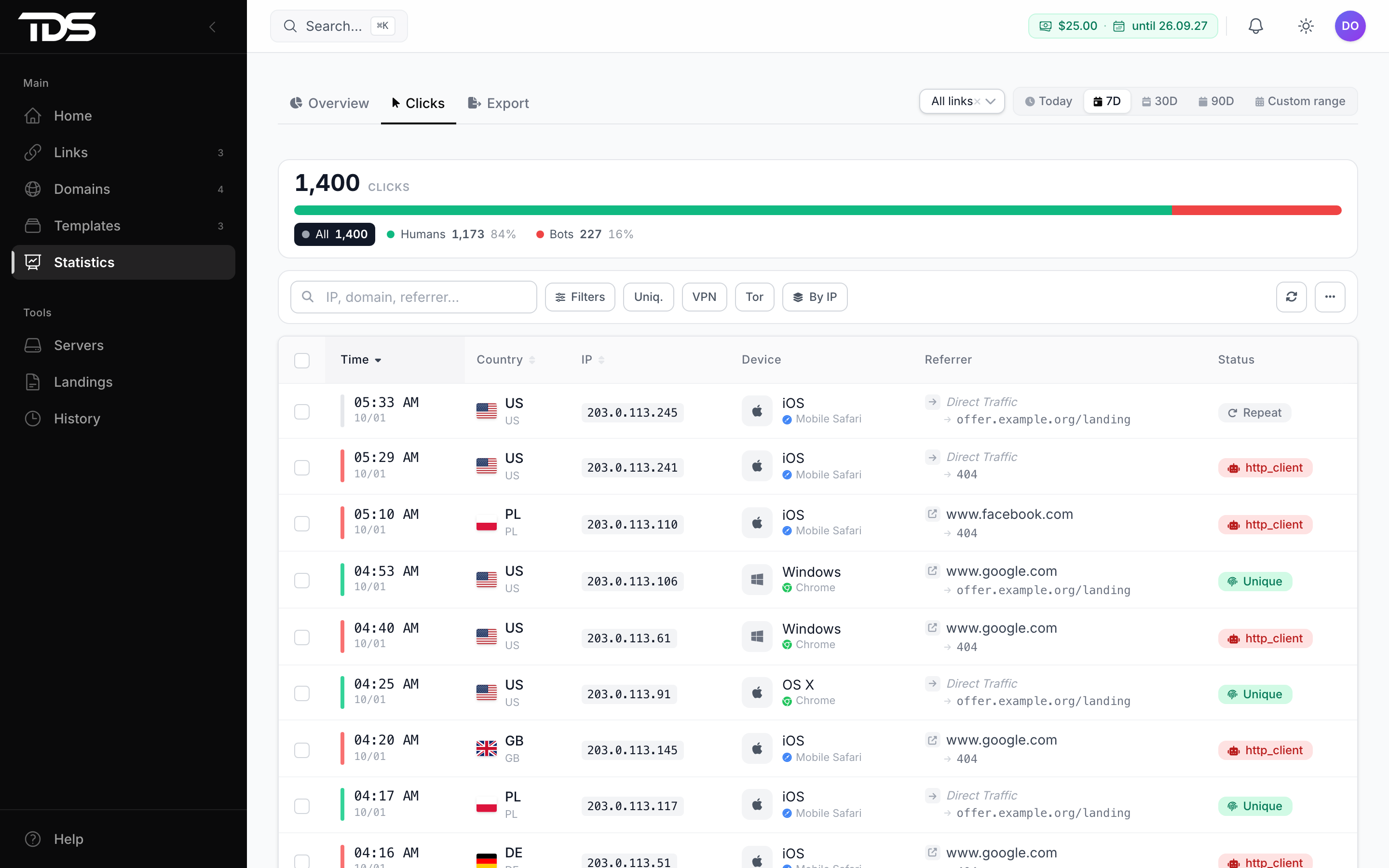
The Clicks tab shows every visit: time, country, device, IP, where the visitor came from and where they went. The colored bar on the left of a row means: red — bot, green — unique visit, gray — repeat visit.
Search and filters
The All, Humans, Bots switch shows the group you need. The Uniq., VPN and Tor buttons keep only those visits. The search bar searches by IP, country, ISP, referrer, destination URL and User-Agent.
By IP groups visits from one address into one row — useful for spotting suspicious activity.
Click details
Click a row to open the click card. It helps you understand why the visitor ended up where they did.
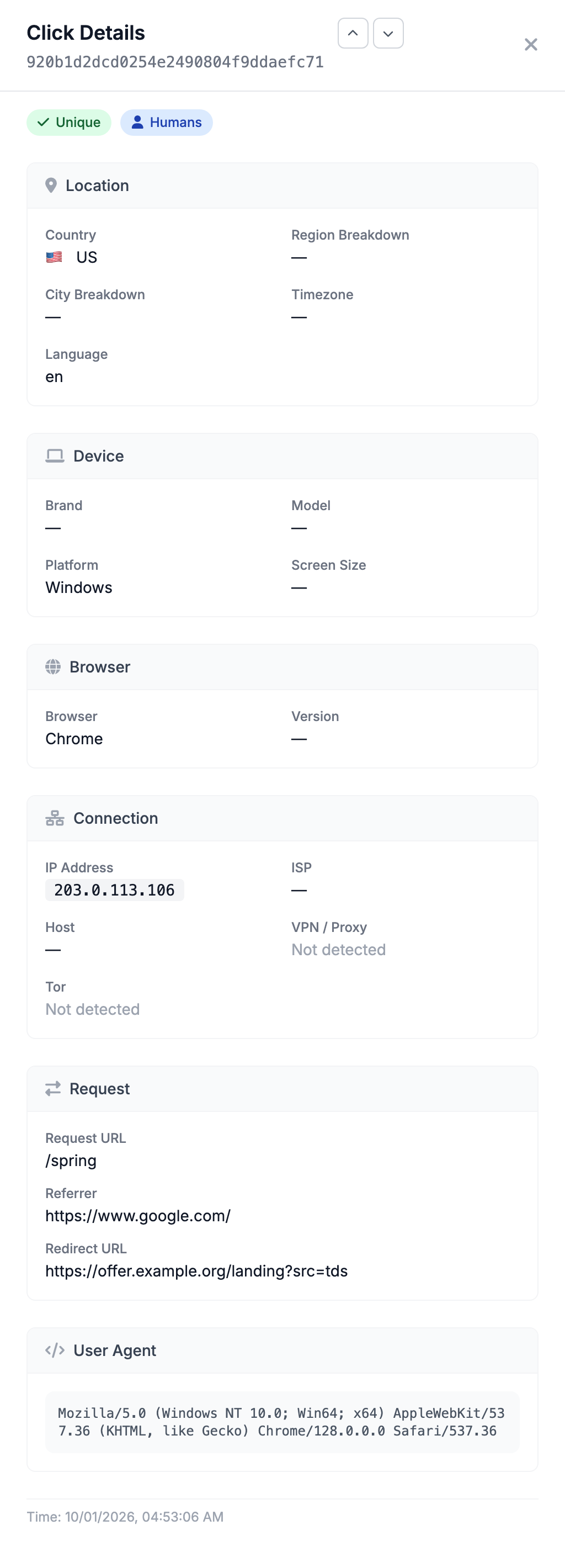
- Humans or Bots — how the filter rated the visit; for bots, also Bot Detection Score and Detection signatures, the reasons it was filtered out;
- Request URL — the address the visitor came to, with parameters;
- Redirect URL — where they were sent: the main URL, a stream URL or the bot URL;
- Referrer — the site the visitor came from; empty means a direct visit;
- country, city, device, browser, IP and ISP — these show why a stream did or did not match.
The arrows at the top of the card move to the neighboring clicks.
Export
The Export tab downloads visits for the selected dates to a file. Simple mode gives a CSV with the main fields; Constructor gives a file with the fields you choose in your own format. You can export up to 500,000 rows at a time.
Deleting clicks
You can delete selected visits with Delete selected. Deleted clicks cannot be restored — if you may need them, export them first.
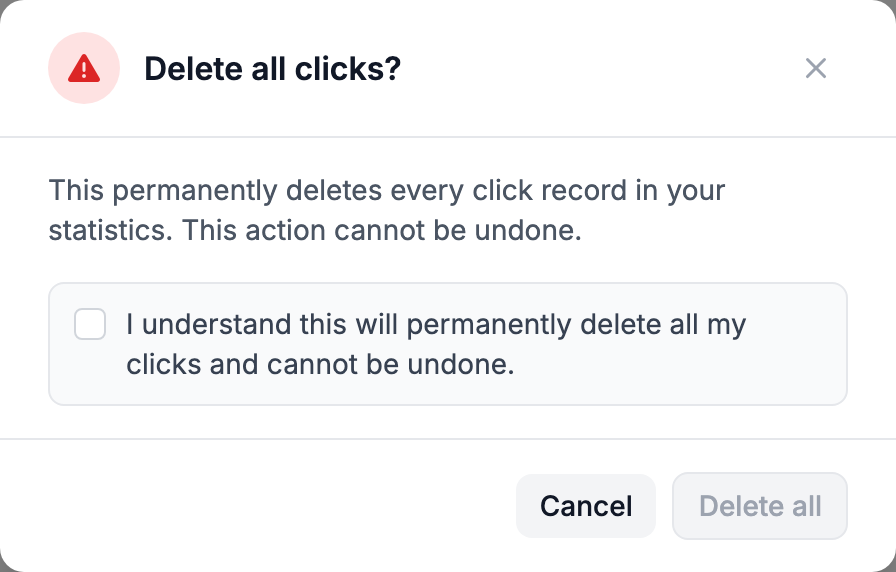
Delete all erases all clicks in the account for all time — regardless of the selected period and filters.
What happens to clicks when you delete or restore links is described in deletion and clicks.