

Landing pages
Your own page right at the link address: creating it, the offer button and connecting it to a template.
A landing page is your HTML page that opens right at the link address, without a redirect to another site. It is used as a prelander before the offer or as a page for bots.
Create a landing page
Open Tools → Landings → New Landing and choose a method:
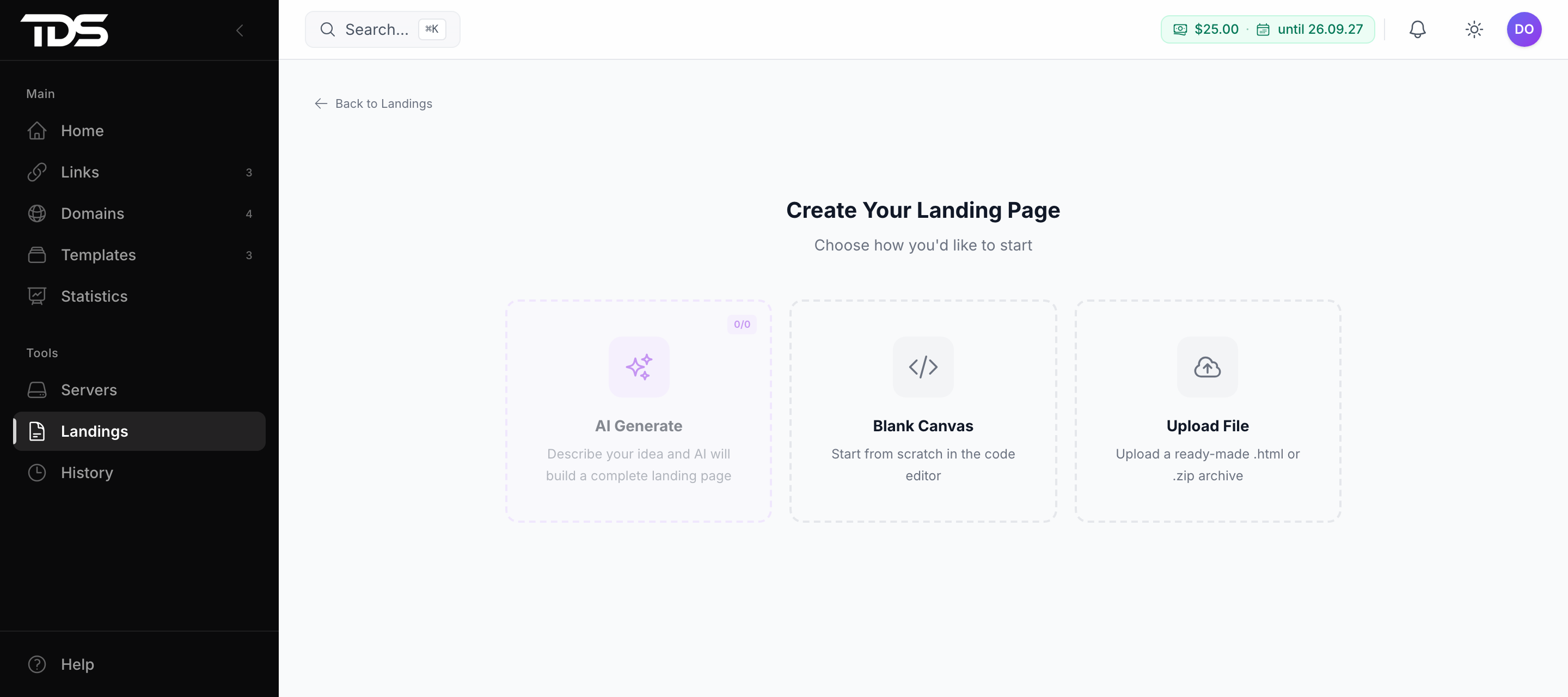
- AI Generate — describe the idea, and the landing page is built automatically. The number of generations depends on your plan; the counter is in the corner of the card.
- Blank Canvas — an empty code editor.
- Upload File — a ready
.htmlor.zip. From an archive, the first HTML, CSS and JS files found are taken, and the images they reference are uploaded automatically. Everything else — fonts, other pages — is not carried over.
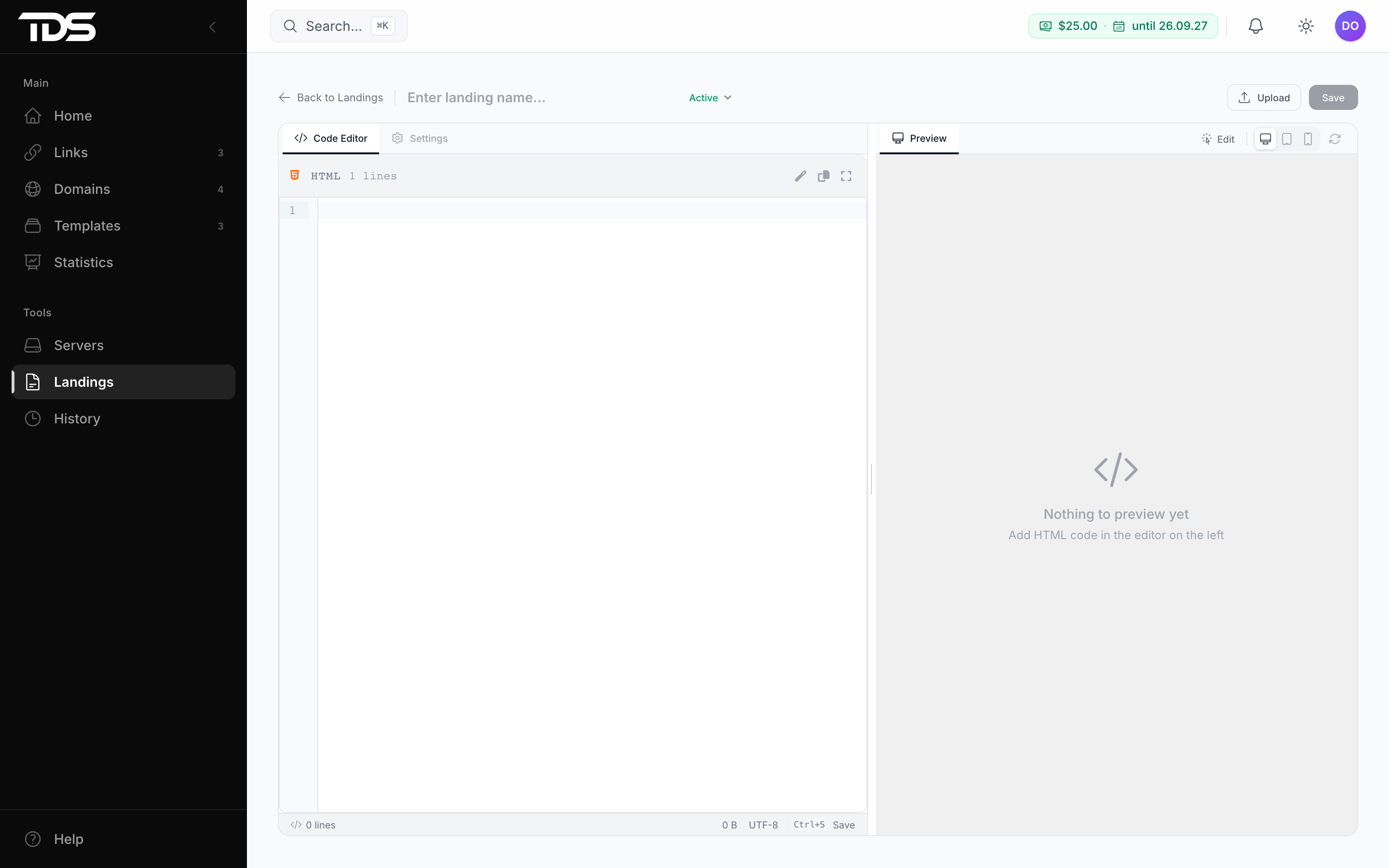
The code is on the left, and the preview on desktop, tablet or phone is on the right. The Edit button above the preview lets you change text, images and buttons right in it. The Settings tab sets meta tags and the social media preview.
Offer button
To make a landing page button lead to the offer, give it href="{{offer_url}}":
<a href="{{offer_url}}">Go</a>The offer address itself is set in the Landing button target field — in the template or in the link; the link's value takes priority over the template's. Until it is set, the button leads nowhere. Parameters from the link address and macros are not passed to the offer address. AI generation puts {{offer_url}} into the main buttons by itself.
In the landing page text you can insert parameters from the link address and the preview — see landing page placeholders.
Connect it to a template
- For people — in the Traffic route block, switch URL to Landing and select the landing page. The template's links will open it instead of redirecting.
- For bots — in the Bots row, select the Show a landing page action.